
How to build a paywall in Jetpack Compose
Short answer: a Compose paywall is a screen with three jobs. It lets the user pick a plan, starts the purchase for that plan, and shows the price, billing period, trial terms and renewal information next to the button. Keep billing out of the UI: give the screen a list of plans and callbacks, and run the purchase in your billing layer.
The problem
Section titled “The problem”Material 3 gives you cards, radio buttons and buttons, but no “paywall”. Most first versions miss something: a radio group TalkBack can’t read, a price that ignores currency, or the auto-renew line Google Play expects. The layout is the easy part; the details are what get apps rejected or refunded.
Without a library: a plain material3 paywall
Section titled “Without a library: a plain material3 paywall”This is a complete, minimal paywall with only androidx.compose.material3. Start from a simple
model:
data class Plan(val id: String, val title: String, val price: String, val period: String, val trial: String? = null)Then the screen. The plans are a selectableGroup with Role.RadioButton, and the disclosure
sits right under the button:
@Composablefun SimplePaywall(    plans: List<Plan>,    onPurchase: (Plan) -> Unit,    onRestore: () -> Unit,    termsUrl: String,    privacyUrl: String,) {    var selected by rememberSaveable { mutableStateOf(plans.first().id) }    val plan = plans.first { it.id == selected }    val uri = LocalUriHandler.current
    Column(Modifier.padding(24.dp), verticalArrangement = Arrangement.spacedBy(12.dp)) {        Text("Go Pro", style = MaterialTheme.typography.headlineLarge)
        // Plans: a radio group, so TalkBack announces "1 of 2, selected".        Column(Modifier.selectableGroup(), verticalArrangement = Arrangement.spacedBy(8.dp)) {            plans.forEach { p ->                OutlinedCard(                    Modifier                        .fillMaxWidth()                        .selectable(selected = p.id == selected, role = Role.RadioButton) { selected = p.id },                ) {                    Row(Modifier.padding(16.dp), verticalAlignment = Alignment.CenterVertically) {                        RadioButton(selected = p.id == selected, onClick = null)                        Text(p.title, Modifier.padding(start = 12.dp).weight(1f))                        Text("${p.price} ${p.period}")                    }                }            }        }
        Button(onClick = { onPurchase(plan) }, Modifier.fillMaxWidth()) {            Text(if (plan.trial != null) "Start free trial" else "Continue")        }
        // Google Play: price, period, trial terms and how to cancel, next to the button.        val terms = plan.trial?.let { "$it, then " }.orEmpty()        Text(            "$terms${plan.price} ${plan.period}. Renews automatically. Cancel anytime in Google Play.",            style = MaterialTheme.typography.bodySmall,            textAlign = TextAlign.Center,            modifier = Modifier.fillMaxWidth(),        )        Row(Modifier.fillMaxWidth(), horizontalArrangement = Arrangement.Center) {            TextButton(onClick = onRestore) { Text("Restore") }            TextButton(onClick = { uri.openUri(termsUrl) }) { Text("Terms") }            TextButton(onClick = { uri.openUri(privacyUrl) }) { Text("Privacy") }        }        Spacer(Modifier.padding(4.dp))    }}
That covers the essentials. What it doesn’t have: a hero, a badge, animation, a sticky button when the content scrolls, dark-mode tuning, and screens for trials, comparisons and offers.
With M3 Expressive Paywall
Section titled “With M3 Expressive Paywall”-
Add the dependency (see Getting started for the JitPack setup).
-
Describe your plans with
PaywallPlan. Theidis yours, so use the product ID, offer token or package ID you need later to buy:val monthly = PaywallPlan(id = "pro_monthly", title = "Monthly", price = "$4.99", period = "per month")val yearly = PaywallPlan(id = "pro_yearly",title = "Yearly",price = "$29.99",period = "per year",trialText = "7-day free trial",badge = "Best value",priceDetail = "$2.49/month, billed yearly",)val lifetime = PaywallPlan(id = "pro_lifetime",title = "Lifetime",price = "$79.99",period = "one-time",priceDetail = "Pay once, yours forever",isSubscription = false,)val plans = listOf(monthly, yearly, lifetime) -
Show a paywall and pass the callbacks:
ClassicPlansPaywall(plans = Sample.plans,features = Sample.features,legal = Sample.legal,onPurchase = { plan -> buy(plan) },onRestore = restore,onClose = close,) -
Start the purchase in
onPurchase. See the guides for Google Play Billing and RevenueCat.
Result
Section titled “Result”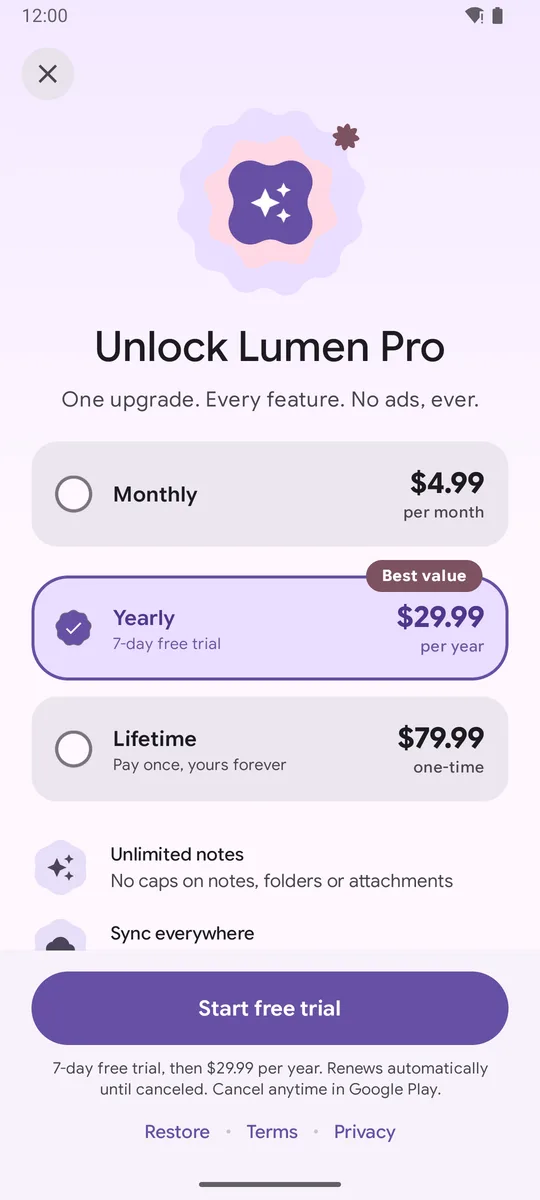
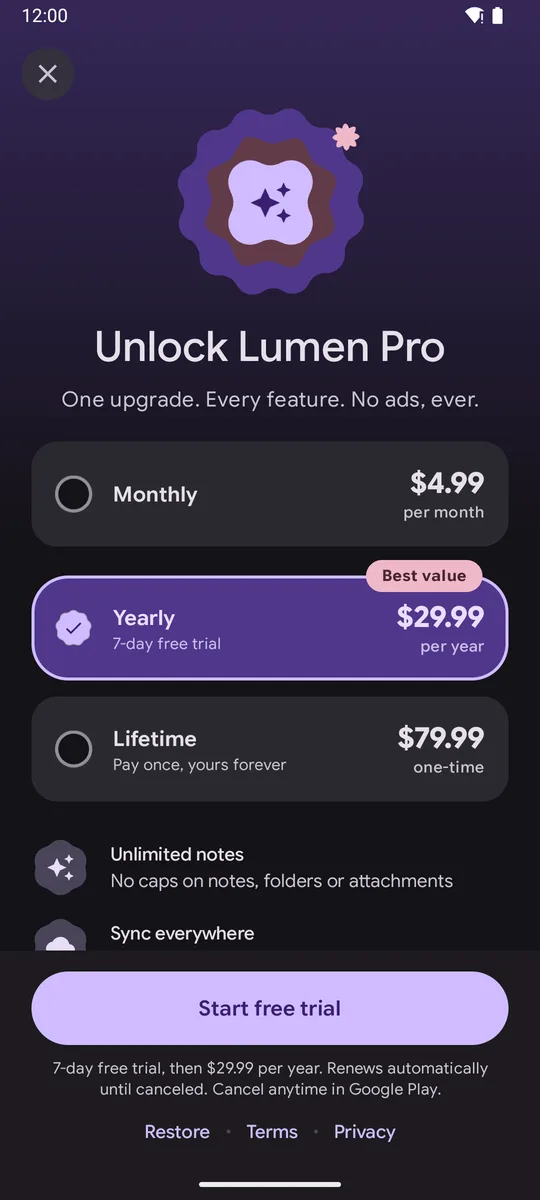
Five more layouts take the same plans and callbacks, so you can switch designs, or A/B test them, without touching billing code. See all six designs.
Tips and common mistakes
Section titled “Tips and common mistakes”- Annual price first. Show the real yearly price ($29.99 per year) as the main number and the monthly equivalent as a detail. Google Play lists “annual plans shown mainly as a monthly price” as a violation.
- One screen, no surprise steps. The price and renewal terms must be visible where the user taps Subscribe, not on a later screen.
- Restore matters. Users who reinstall or change phones look for it.
- Test both themes and large fonts. Make sure the disclosure still fits above the navigation bar.
Related
Section titled “Related”- Google Play subscription paywall requirements
- Free trial paywall in Jetpack Compose
- Classic plans paywall
FAQ
Do I need a paywall SDK to show a paywall in Compose?
No. A paywall is a normal Compose screen. You only need a billing library (Google Play Billing, or a service like RevenueCat) to load prices and run the purchase.
Should prices be hard-coded in the paywall?
No. Load the localized price from the store (for example ProductDetails.formattedPrice) and pass it to the UI. Hard-coded prices are wrong in other countries and currencies.
Where should the paywall live in my navigation?
Treat it as its own destination (or a bottom sheet) that returns a result. Keep billing in a ViewModel or repository and give the screen only plans and callbacks.
Try it in your app
Add the library (JitPack, minSdk 26), then follow Getting started.
implementation("com.github.sanikantv:m3-expressive-paywall:v1.0.0")⭐ If this guide helped, star M3 Expressive Paywall on GitHub. It helps other Compose developers find it.
Built by Sanikant. Set in Google Sans Flex (SIL Open Font License). Not affiliated with Google.